

We are rolling out a new Find a Coach system to better connect coaches with athletes and parents. A richer visual profile helps people understand who you coach, where you train and how to get in touch.
Create yours now so you are ready to connect with new athletes this season.
Make the profile useful
Help an athlete answer four practical questions
A name and accreditation establish credibility. The extra detail helps an athlete or parent decide whether you may be the right fit before they make contact.
Who do you coach?
Describe the events, age groups and development levels you commonly support.
How do you coach?
Share your philosophy, experience and what an athlete can expect from the coaching relationship.
Where and when?
Make your training locations and current availability easy to understand.
How can they connect?
Provide a clear and current contact pathway so interested athletes know the next step.
Step by step
Set up your public profile in eight steps
Open each step as you work. Mark it complete and this guide will remember your progress on this device.
01 Start here Create your Coach Flow account Not complete
Visit the Coach Flow signup page and create your account. Use an email address you regularly check so profile enquiries and account messages are easy to manage.
02 Dashboard Open the public profile setup Not complete
From the Coach Flow dashboard, locate the box on the right hand side labelled Create Your Public Profile and open it.
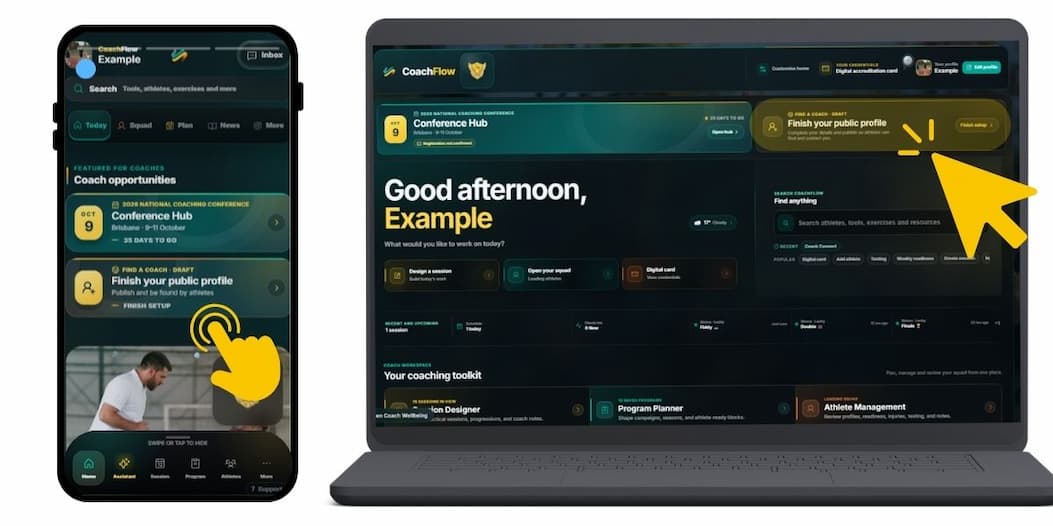
03 Choose a starting point Select how you want to build your draft Not complete
The setup window gives you two options.
Use your existing coach details
This can pull in your name, location and credentials already linked to your national ID number, leaving less for you to complete.
Use a bio or website
Paste your existing biography or website address. AI will read it and prepare an editable draft for you to review.
04 Check the draft See what is left to complete Not complete
Your starting option determines how much you need to add or change. Using your existing coach details generally leaves the least to do. Work through anything that is missing, outdated or incomplete.
05 Add the detail Work through the four profile sections Not complete
Complete each section with enough detail for an athlete or parent to understand your coaching and decide whether contacting you makes sense.
About You
Introduce yourself and your coaching background.
Your Coaching
Describe your events, athlete groups, philosophy and coaching approach.
Contact & Availability
Make it clear where, when and how an interested athlete can reach you.
Review
Check the complete profile and how it will appear publicly.
06 Quality check Review and preview your profile Not complete
In the Review section, read back over everything and select Preview Profile or Preview Draft to see the public view.
07 Go public Publish your profile Not complete
The app will flag anything essential that is still missing. Complete those items first, then switch the grey toggle to ON.
You can use the toggle on the left, or the matching toggle inside the yellow Draft Workspace box in the top right.
08 Final check View the live result Not complete
Your public profile is now live and athletes and parents can find you. View it as a prospective athlete would and make sure your coaching focus, training location, availability and contact details are clear.
Your setup checklist is complete
Nice work. Your digital front door is open, and it contains rather more than a nameplate.
Ready to be found?
Create your public coach profile
A few minutes now can make it much easier for the right athletes and parents to understand your coaching and make contact.
Your progress is stored only in this browser on this device. It does not change your Coach Flow account or profile.
